Create Fake Status on facebook:
Fool your friends by creating fake status…just follow this link and create!
Download Facebook Videos:
Facebook has numerous funny pages and weird funny pages those post short videos to make us laugh..but the bad thing is that we can’t download that videos to add to our video collections..but here the trick to download that videos in few easy steps :-
Also Read : why touch-pad is not Working
First login in Facebook and go to video which you want to download and right click on that video, copy the URL of that video,
Once copied the URL of the video now go Here,
Enter the URL of the video which you want to download.
Paste the Link in the input Box.
Hit the Download button.
Select Video Quality which you want to download : High or Low Quality Video
Access “Only” Facebook Chat Directly On desktop:
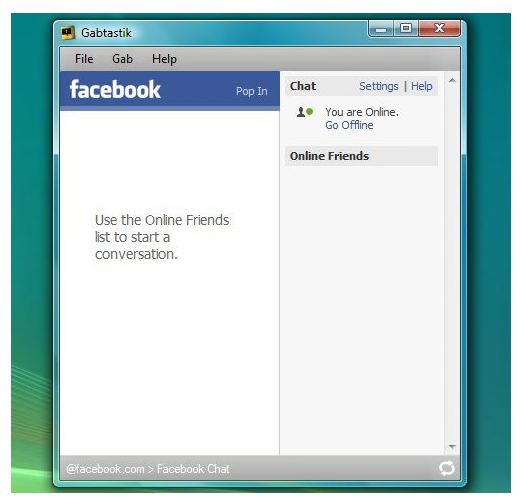
Want to chat with google talk friends and Facebook friends simultaneously? here the software which is very useful to chat with multiple friends without hassle its called “Gabtastik“its allow us to connect to Facebook with our own favorite browser with less use of RAM which makes more laggless !!
Download Facebook Photo Album in One-Click:
What we generally do to download the photo that one of our friend has posted on his Facebook wall and we wanted to save that all photos as a memories, we generally go through all the photos and right-click on each and every photo and save it right? its very time consuming, so here the new way to save the time and to save the Entire album in just one go!!
FacePAd is very cool application which help us to download out favorite album with one click!! isn’t it Cool!!
just download facePAD application and install it..it will automatically get added to to your browser, now log in your Facebook and go to the album which you want to save, right-click on it and select “Download Album with FacePAD” it will download the whole album with just one click!!
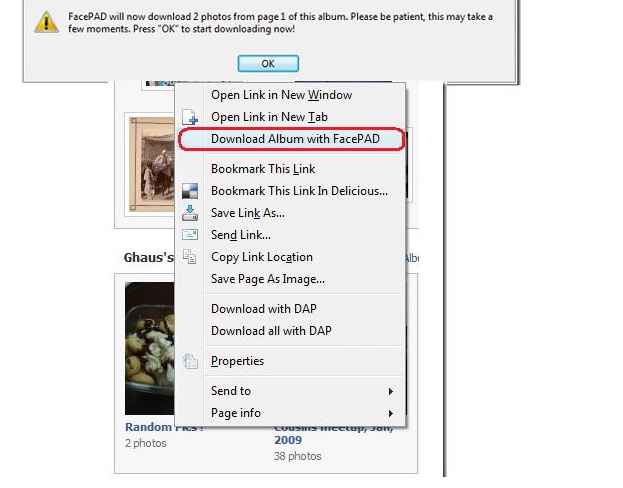 Only the down point is that while saving we can’t save the album on our specific folder instead its get save in Firefox default download folder.
Schedule Facebook Message:
Want to send message to friend to fix the coffee table after your work or college?? but what if you forget to show up on time? definitely the coffee table is gonna miss u!! sometime in work we get busy so much that we literally forget that we have schedule some meeting or have to visit some place and we don’t get reminded by any message…so this is the cool application to make schedule your message to your Facebook friend and tell them to call you or pick you up before its late for get together!!
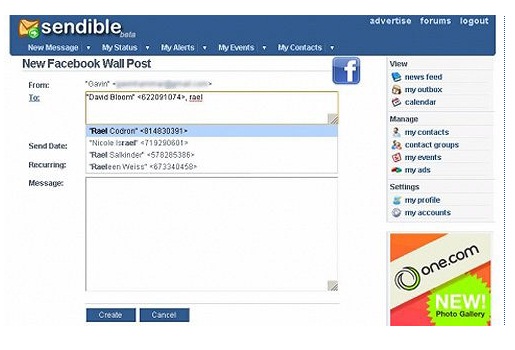
go to sendible.com and sign up there and log in..once done then just follow the steps and schedule your message to Facebook Friends and make the call you before the dinner time:)
Make that profile Picture Un-clickable :
Go to your Albums >> Profile Pictures
Select your current profile picture.
Adjust privacy setting to “Only Me”
Crush that Candy request:
Here comes the most annoying moment when you again receive the candy crush request, now you can get rid of this request in just few steps, so lets crush that candy 😉

open Facebook from your smartphone using “Facebook application” there Under the “More” tab, select “Settings” then “Account Settings” followed by “Notifications.” Go to “Mobile” scroll down, and un-check “Application Invites“.
Remove Last Name from Facebook Profile:
As a part of security Facebook makes users to fill the first and last name mandatory to complete the process, but here the cool trick to bypass that last name filling hurdle.
Lets get started:
Open Mozilla Firefox (recommended browser:Firefox)
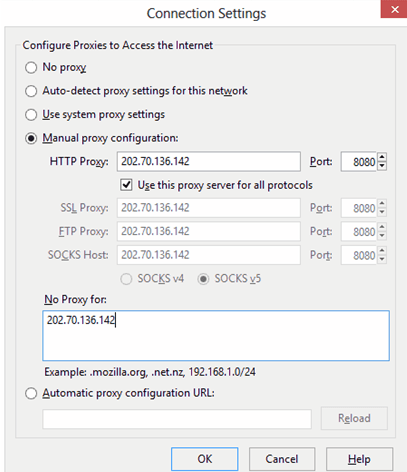
Go to Options > Advanced > Network > Settings > Connection Settings > Manual Proxy Configuration
In the HTTP Proxy Field, enter 103.10.62.30, port 8080, or Insert any Indonesian Proxy.
Now on your facebook profile, go to Account settings > Change Language to BAHASA INDONESIA.
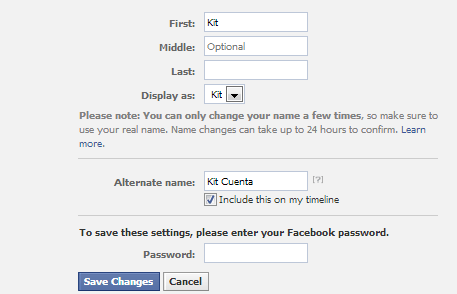
Done!! now Remove your middle name and last name.
Hide that “seen” from facebook messenger:
“Why didn’t you reply after seeing my message” this is what you hear when you read the message and then the recipient is one of your loved once start arguing with you on this issue,so here now a cool application with the help of this you can read the message and also won’t let her/him know that you actually read his/her message!!
Download Unseen Addon For your Internet browser. (For Google Chrome Click Here and For Mozilla Firefox Click Here)
Turn On the Add On, that’s it now no-one will able to know weather you seen their message or not.
Share this article and let the people learn!!